Adding a new product to the inventory
This guide explains how to add a new product to the inventory from the merchant app, including setting price, tax.
Prerequisites
- You are logged in to the merchant app with a role that has edit access to Inventory.
Step 1: Open the Inventory module
- From the main navigation bar, click Inventory.
- In the Inventory page, click the Base Menu tab if it is not already selected.
Step 2: Start adding a new product
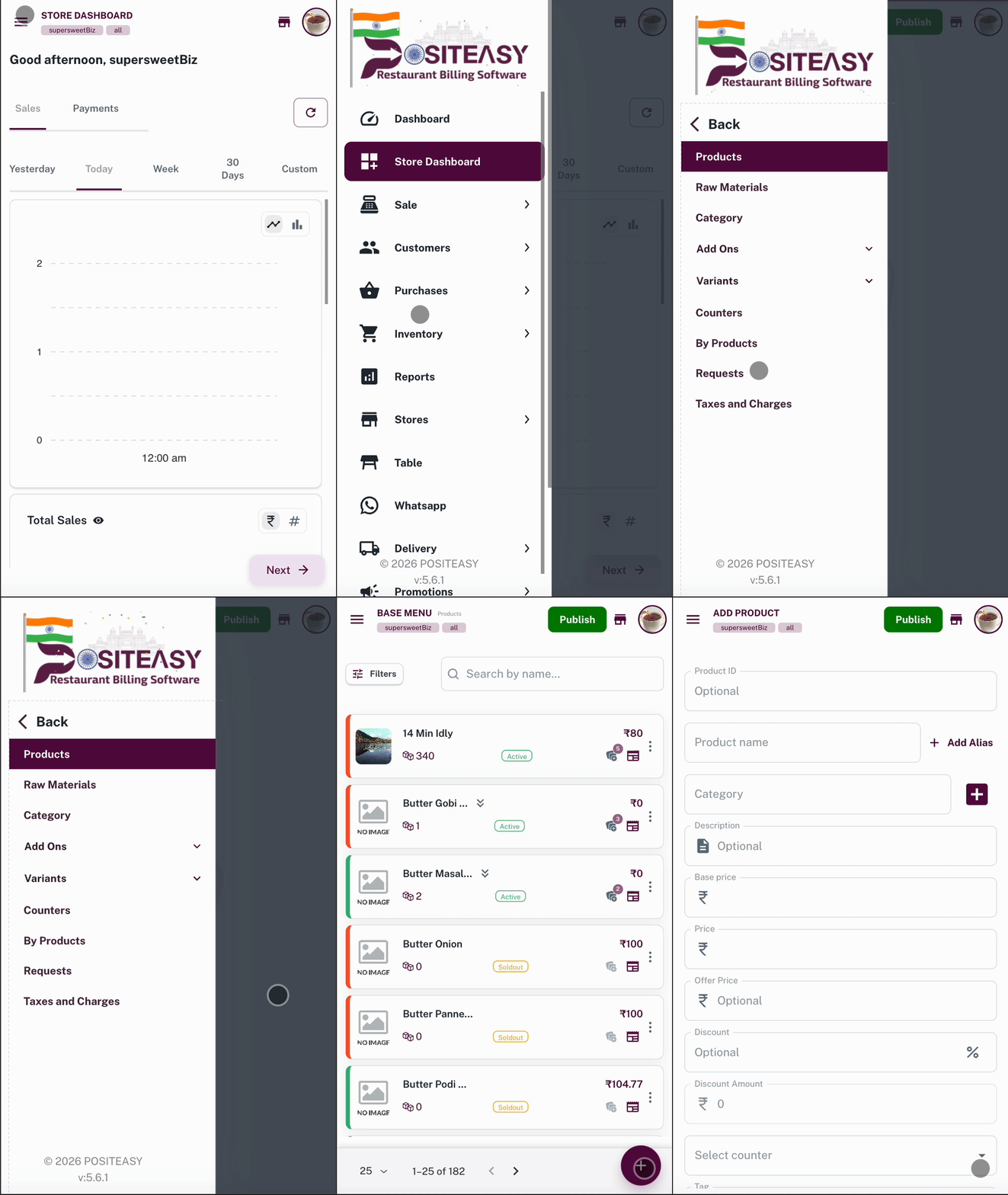
- Click the Add Product
 .
. - A New Product form or dialog appears.
- 📱 Desktop View
- 💻 Mobile View
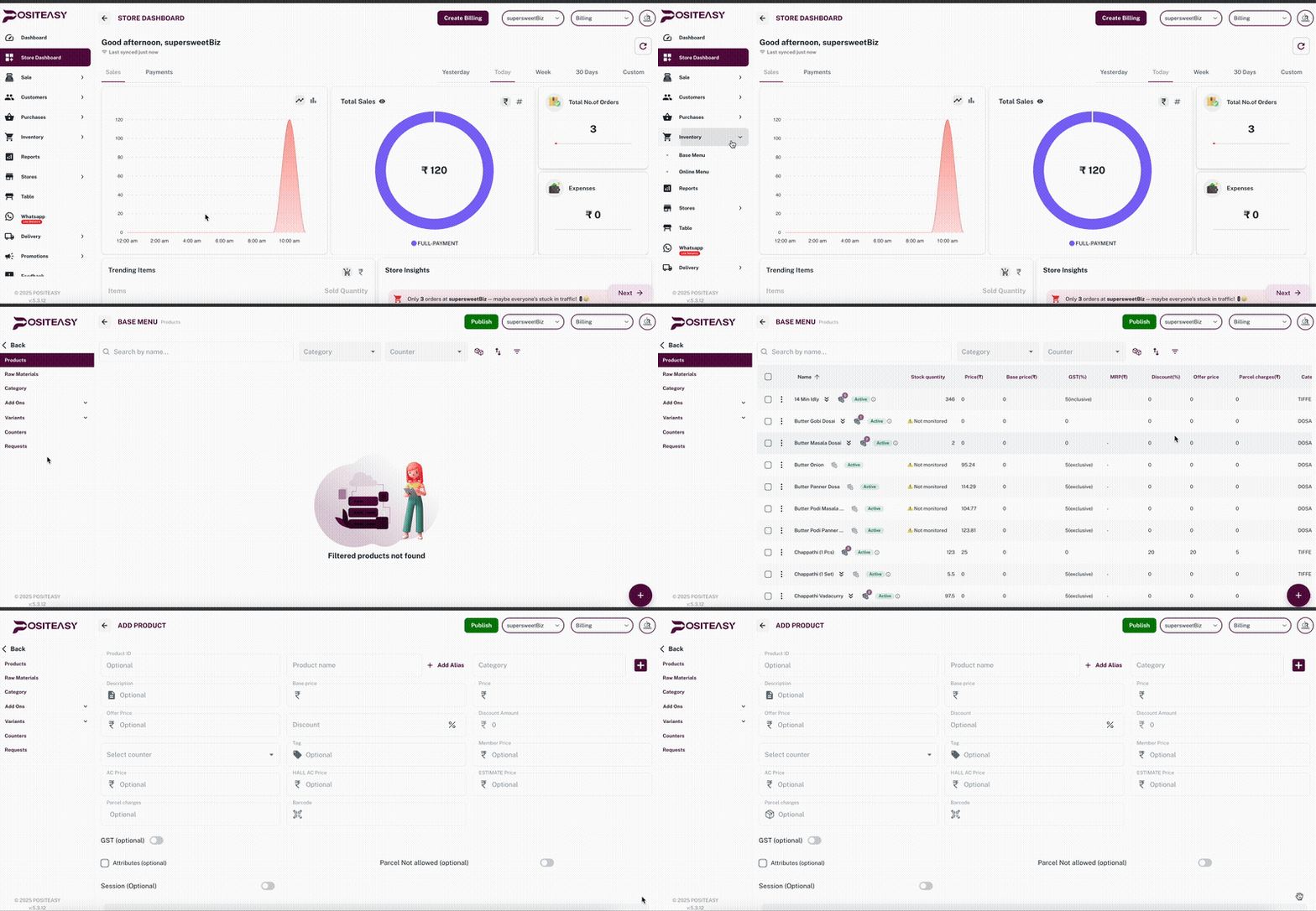
Example of the Inventory → Products list page.
The New Product form with basic details section.
Step 3: Enter basic product details
In the Basic details section, fill in:
- Product name: The name that will appear on the POS and receipts.
- Description (optional): Short description about the product.
- Category: Choose an existing category (for example, Beverages, Main Course, Desserts) or create a new one, by clicking the add category button
 and filling the category details.
Ensure the product name is unique and accurate so reports and search work correctly.
Step 4: Add translations (optional)
In the Product name section:
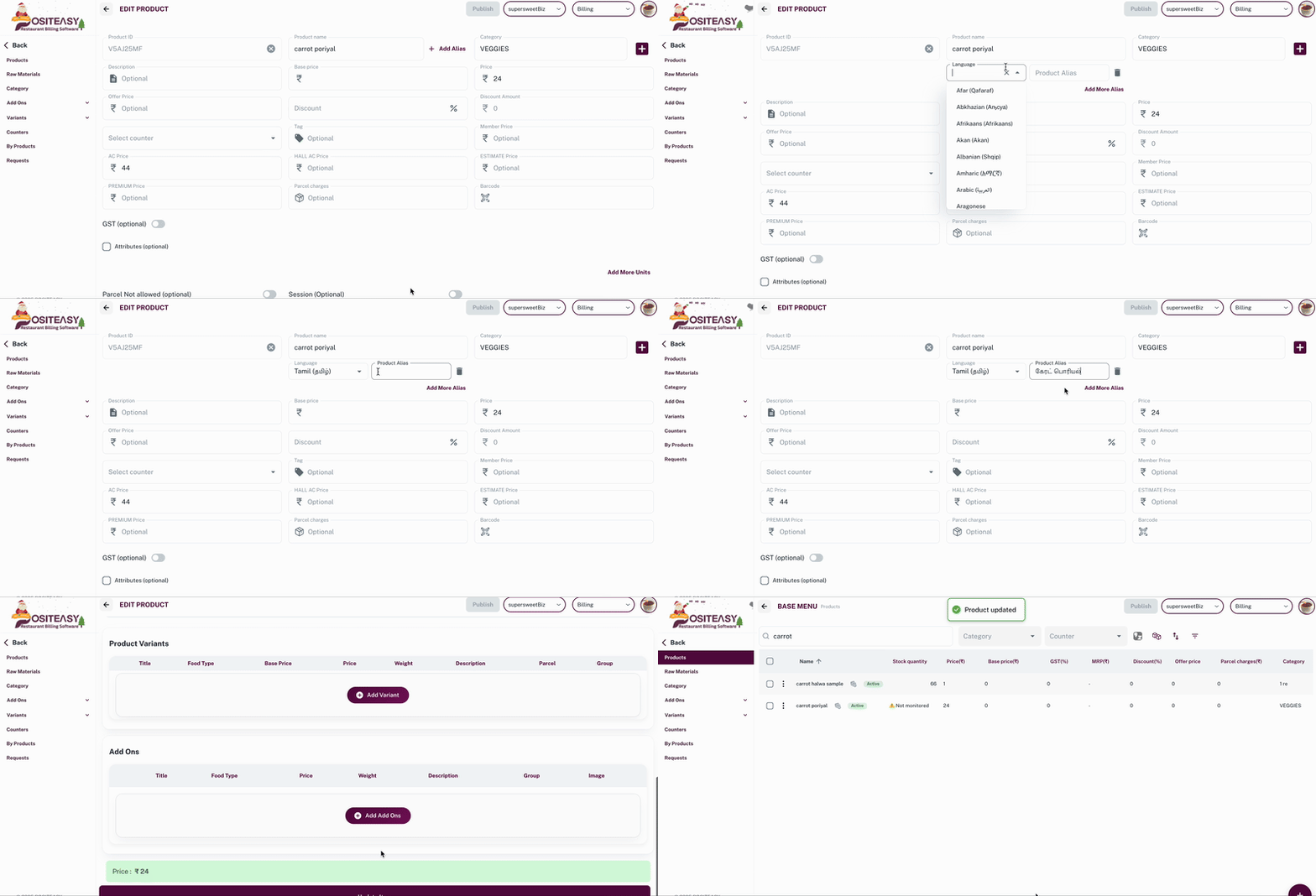
- Click the + Add Alias button to add translations.
- Add product names in other languages if you need multi-language menus.
Step 5: Configure pricing and tax
In the Pricing section:
-
Enter the Price.
-
(Optional) If applicable, enable GST and enter the GST percentage (inclusive or exclusive of GST, based on your configuration).

-
(Optional) Set Base price for margin and profitability reporting.
Step 6: Select counter (Optional)
- Select the counter to which this product belongs to.
Refer Add counter to create counters in the merchant app.
Step 7: Save the product
- Click Add Item button to create the product.
- After saving, verify that:
- The product appears in the Products list with the correct name and price.
- The product is visible in the Staff App billing screen after account sync.