Viewing Order Reports
This guide explains how to view and manage order reports in the POSItEasy Merchant application.
Overview
The Order Report provides a detailed list of all transactions within a specified period, including order details, payment status, and customer information.
Steps to View Order Reports
-
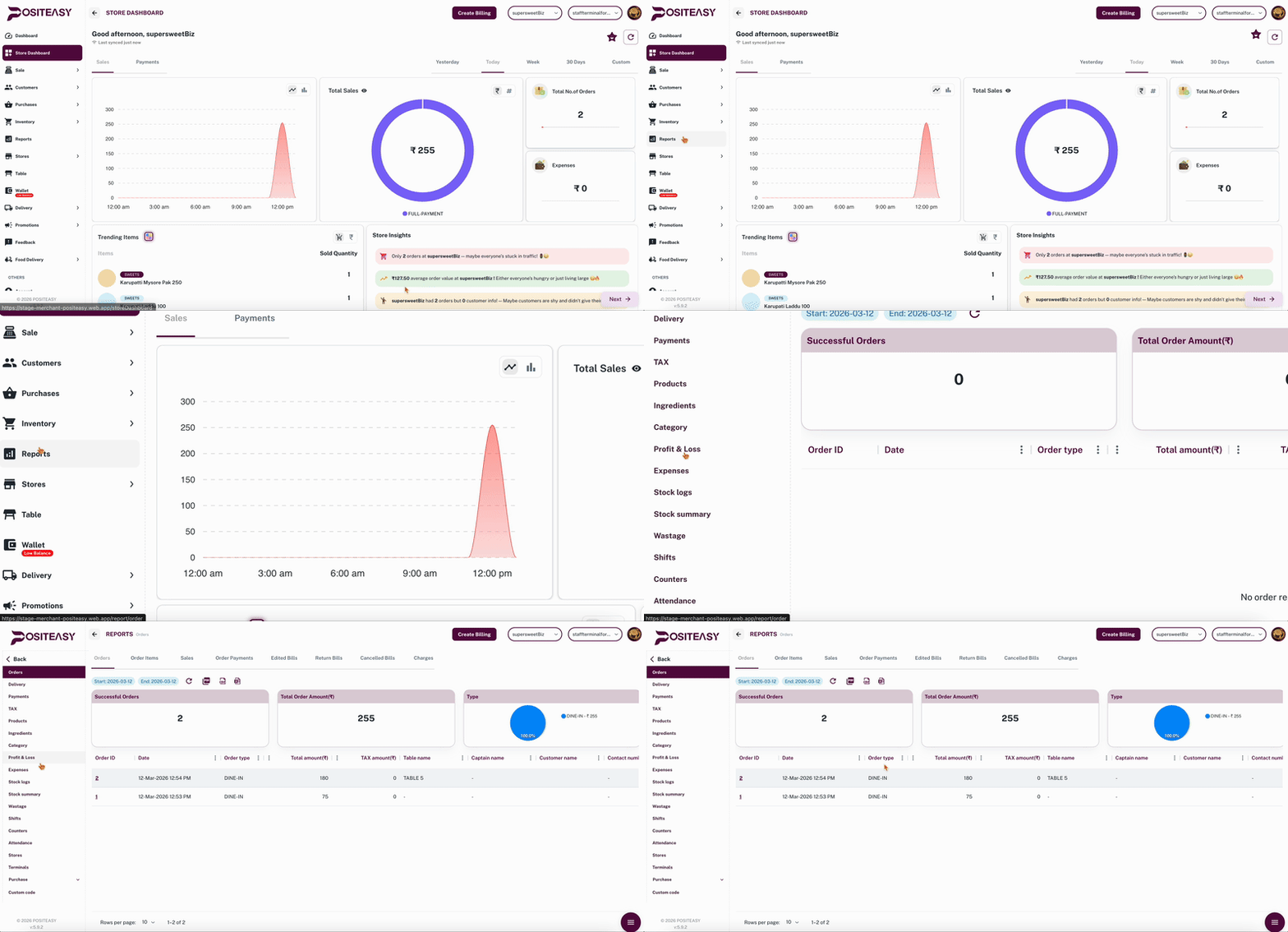
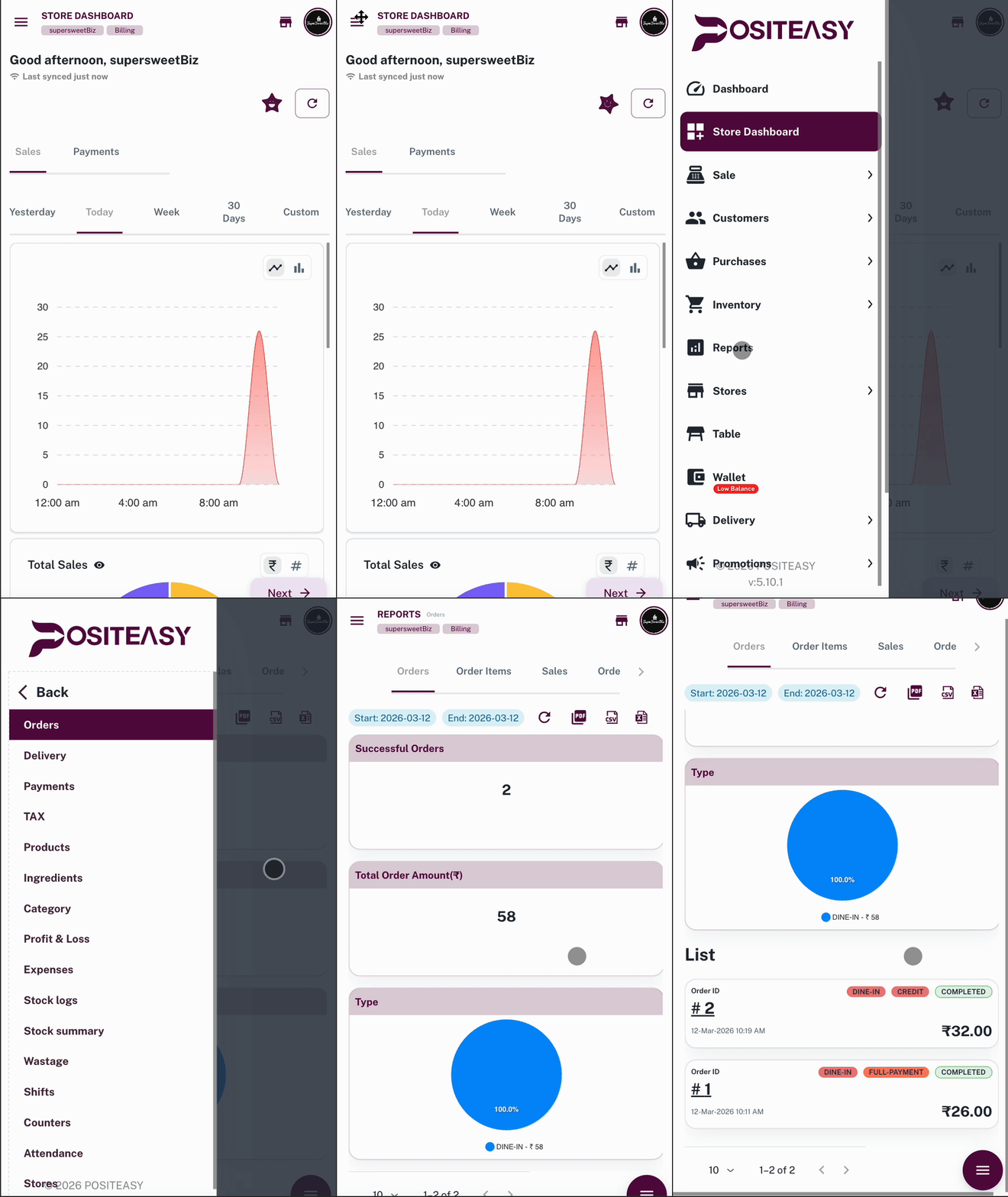
Open Reports: In the main sidebar, click on Reports.
-
Select Orders: Under the Reports section, click on Orders. This will open the Order Reports dashboard.
- 💻 Desktop View
- 📱 Mobile View
- Orders Tab:
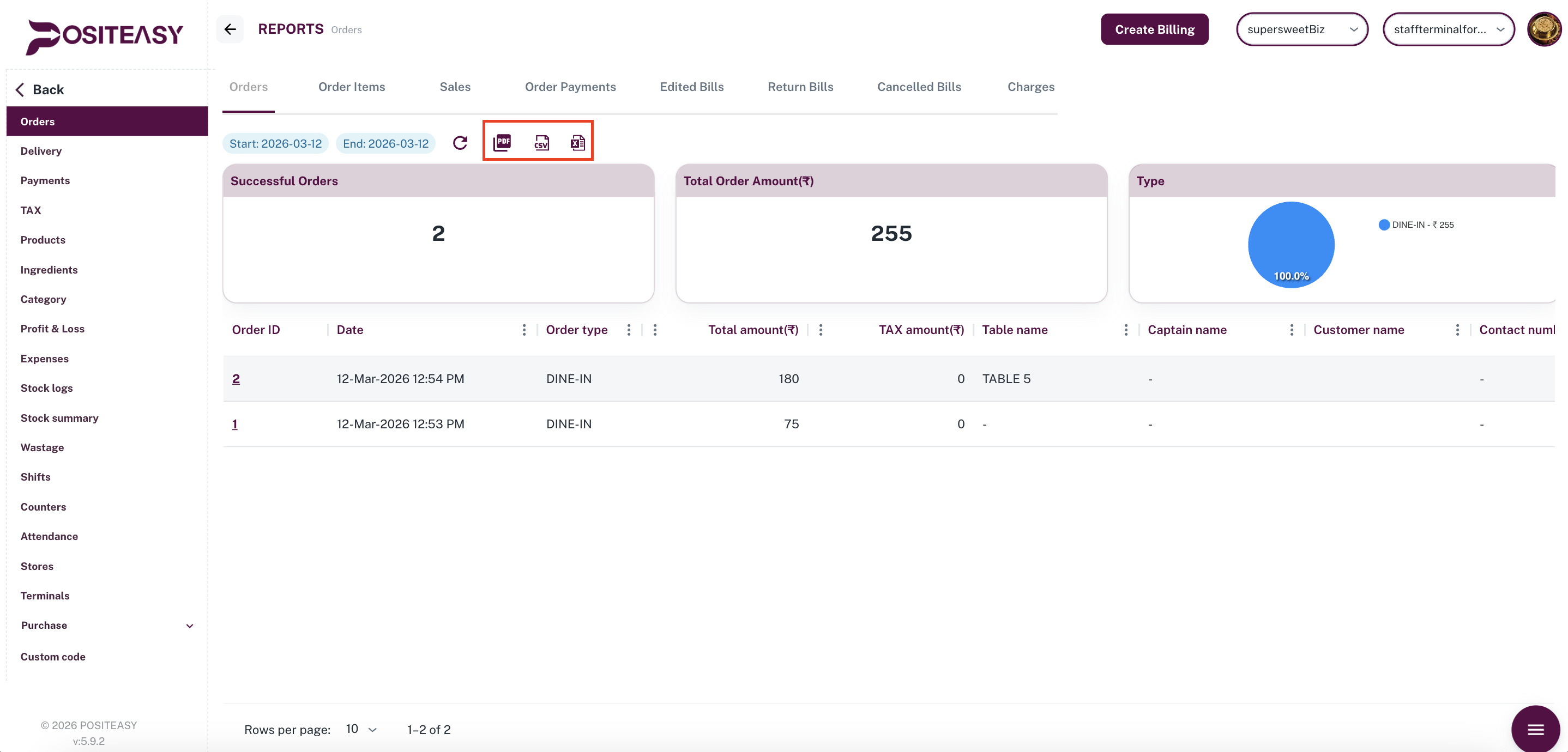
By default, the Orders tab is selected. This tab displays a table with the following important information:
- Order ID: Click on the ID to view detailed transaction information.
- Date & Time: When the order was placed.
- Order Type: Order type (e.g., DINE-IN,PARCEL).
- Total Amount: The total value of the order.
- Tax Amount: The total tax value of the order.
- Payment Type: Mode of payment (e.g., CASH, CARD, UPI).
- Status: Current status (e.g., COMPLETED, CANCELLED).
Filtering Reports
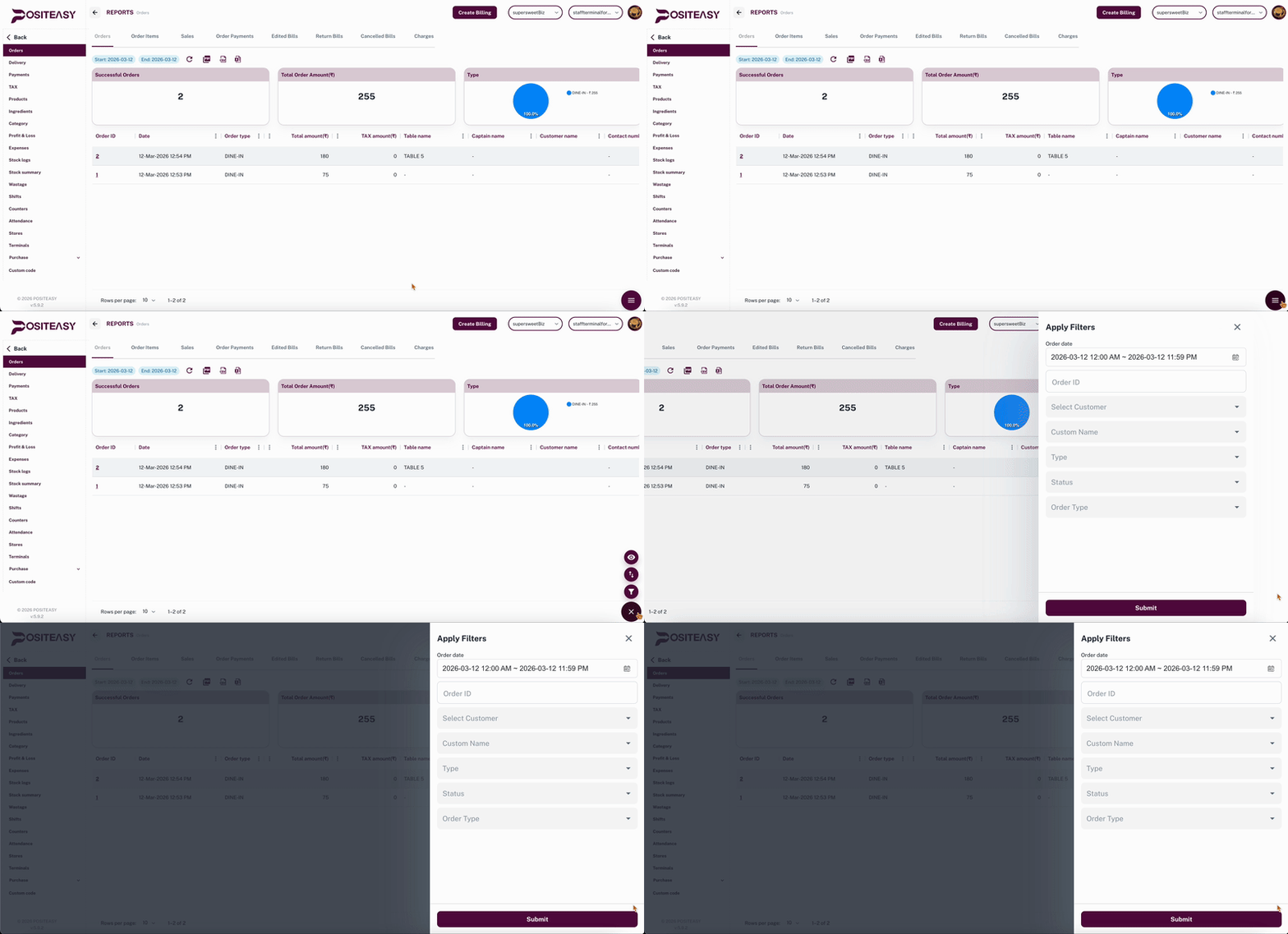
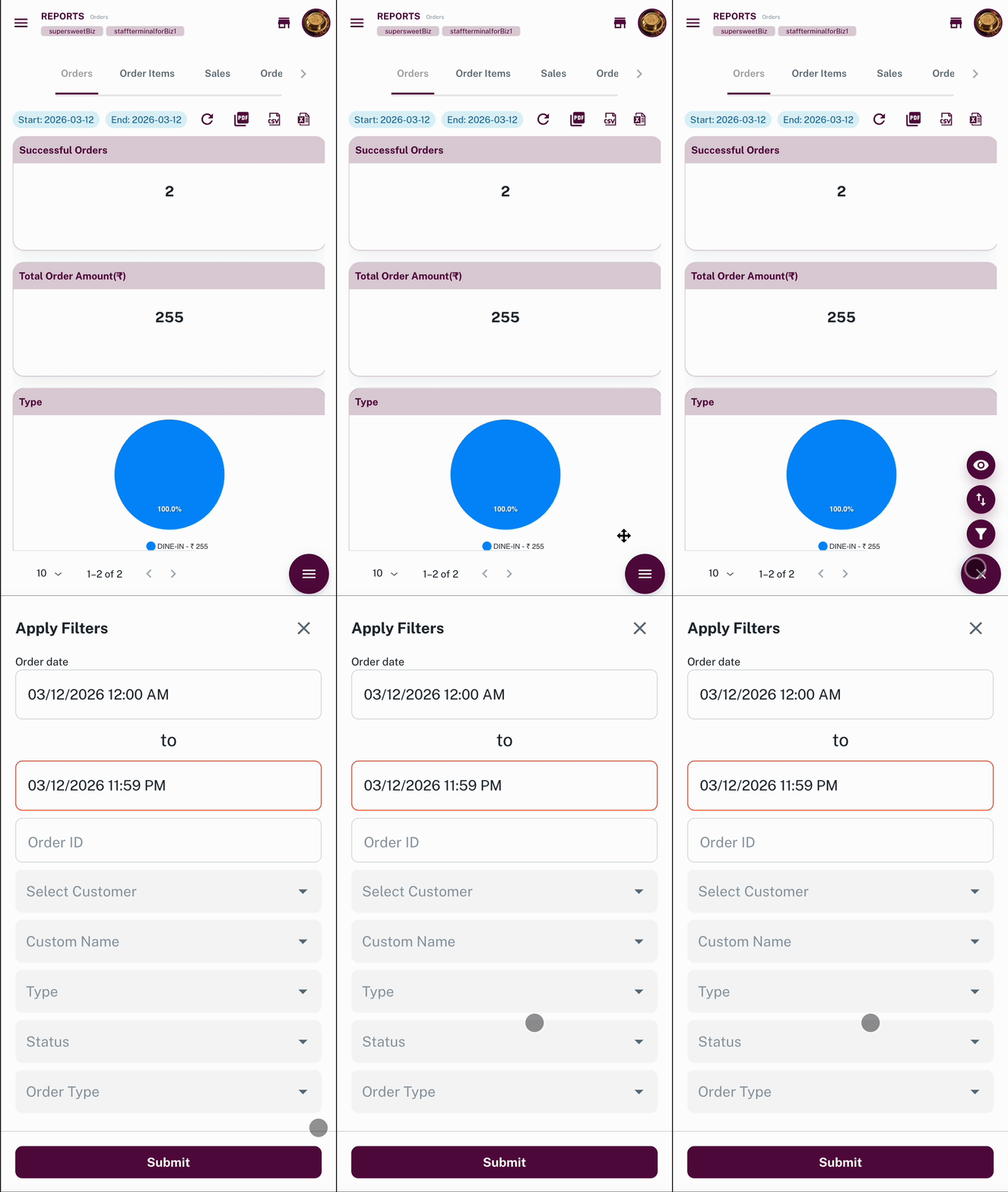
You can narrow down the list using the filter options:
- Date Range: Select a start and end date to view orders for a specific period.
- Search: Search for specific orders by Order ID.
- Status: Filter by order status (e.g., Open,Completed,Cancelled).
- Payment Mode: Filter by payment methods.
- 💻 Desktop View
- 📱 Mobile View
Exporting Reports
To download the report for offline use:
-
Click the PDF / CSV / XLS icon to generate and download the report in the selected format.