Using Split Payment (Multiple Payment Modes)
This guide explains how to enable the Split Payment feature, allowing customers to pay for a single order using multiple payment modes (for example, part Cash and part Card).
Prerequisites
- You are logged into the Merchant App.
- You have edit access to configure Terminal settings in the Merchant App.
- You have enabled more than one payment mode (CASH, CARD, UPI, etc.) in the local configuration of the Staff App.
Step 1: Enable Split Payment in Merchant App
- From the main navigation bar, go to Settings → Terminal.
important
While making changes to terminal settings in the Merchant App, make sure you have selected the desired terminal.
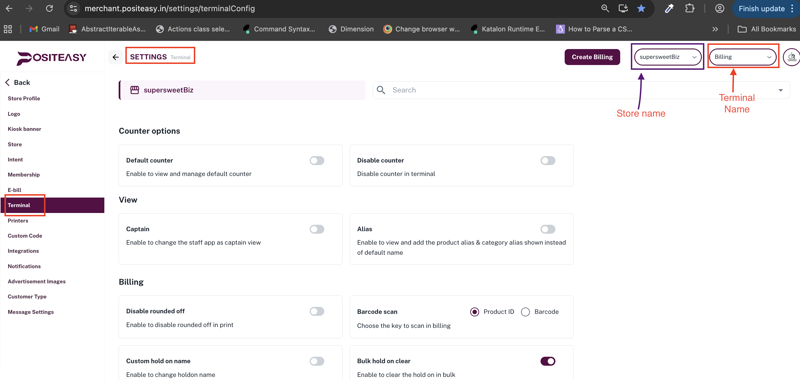
- Search for Split payment mode in the Terminal settings page.
- Enable the Split payment mode option.
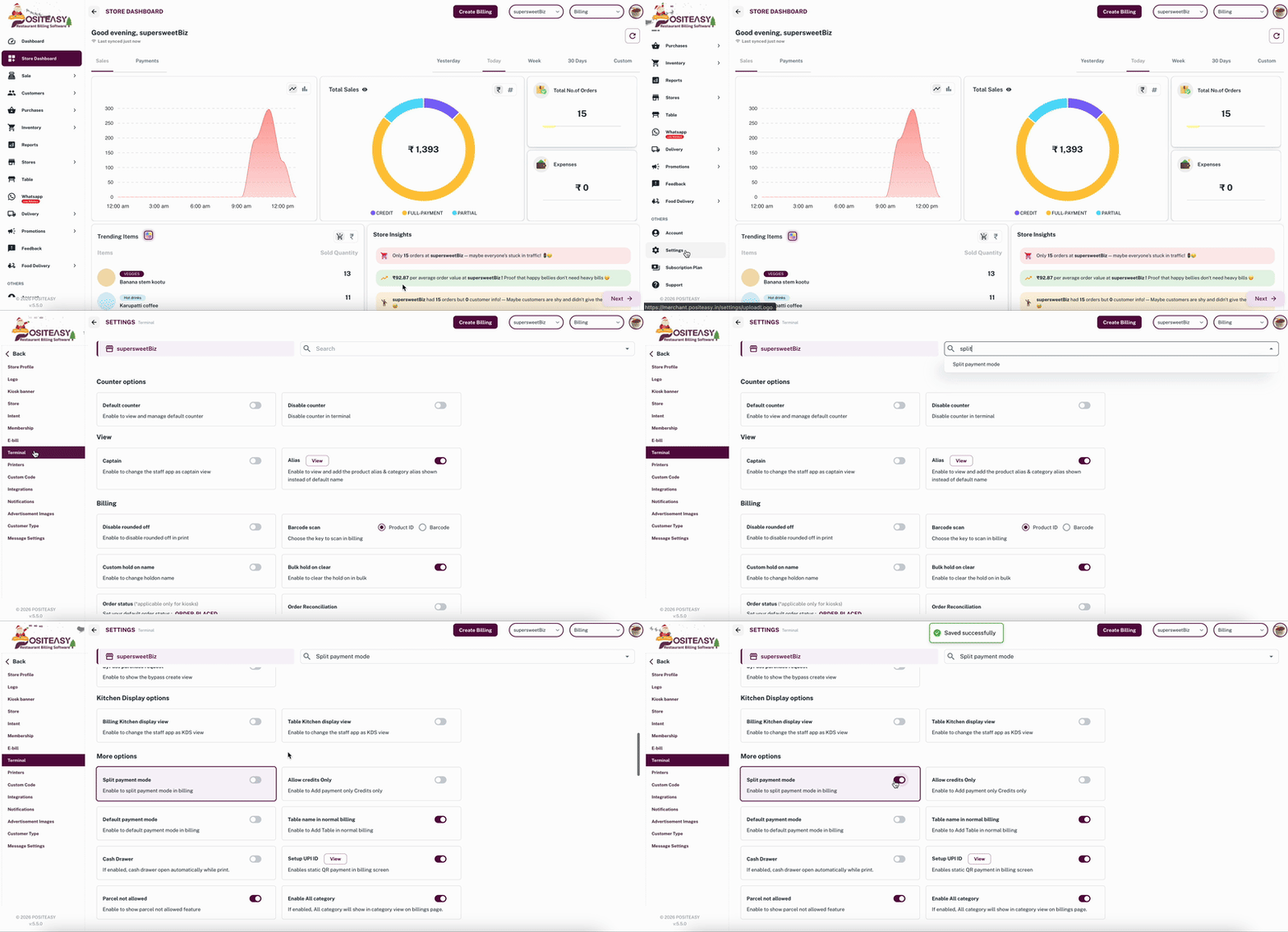
Step 2: Sync Staff App
- Open the Staff App.
- Refresh or Sync to update the new settings. (Refer to Sync Staff App)
Step 3: Enable multiple payment modes in Staff App
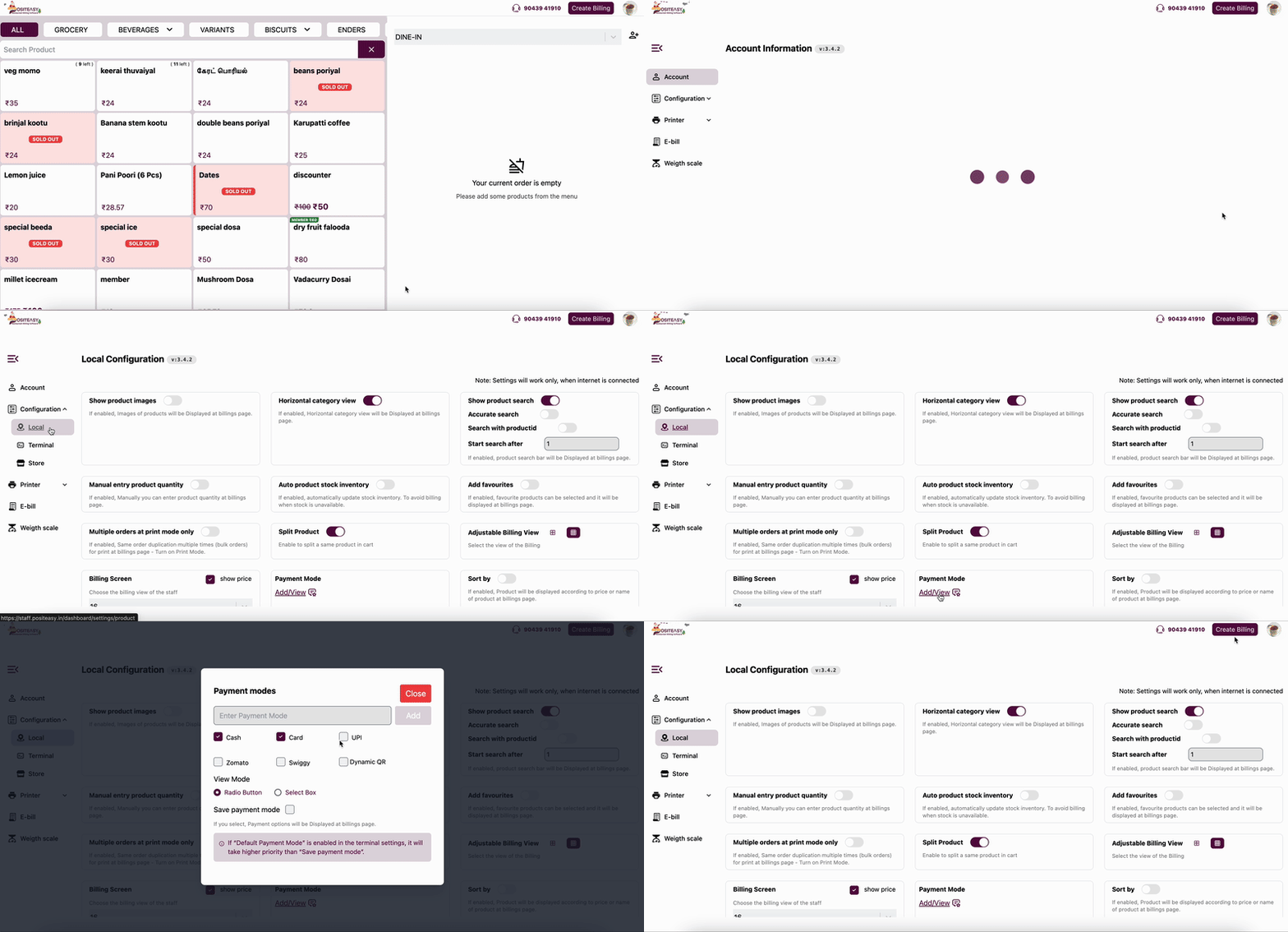
- From the main profile icon, select Settings.
- From the navigation bar, select Configuration → Local.
- Click the Add/View button under Payment Mode.
- Select the required payment modes from the list (e.g., CASH, CARD, UPI).
- Click the Close button.
Step 4: Pay using multiple payment modes for a single order
- On the Create Billing page, add products to the cart.
- Select the
 icon available in the cart.
 - In the Split payment mode dialog, enter the amount for each payment type (amounts must be entered for at least two modes).
- Ensure that after entering the amounts, the remaining balance is 0.
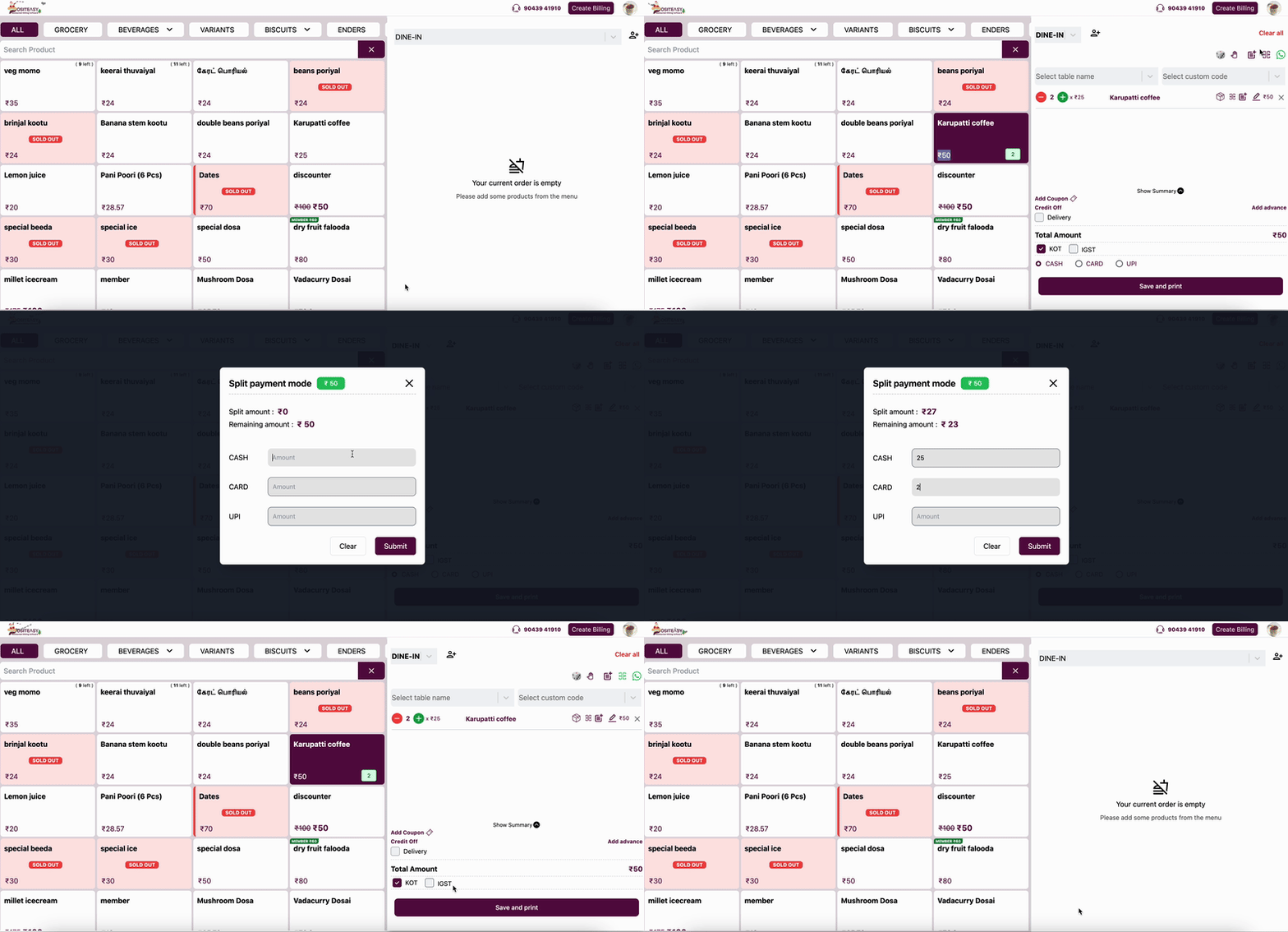
- In the Payment Info section of the view billing page, you will see multiple payment records corresponding to each payment type entered in the split payment mode dialog.