Enable table billing in Staff App
This guide explains how to enable table billing in the Staff App, allowing staff to take table-wise orders for dine-in customers.
Prerequisites
- You have enabled Tables and created tables in the Merchant App settings.
Refer to Creating tables in Merchant App. - You are logged into the Staff App.
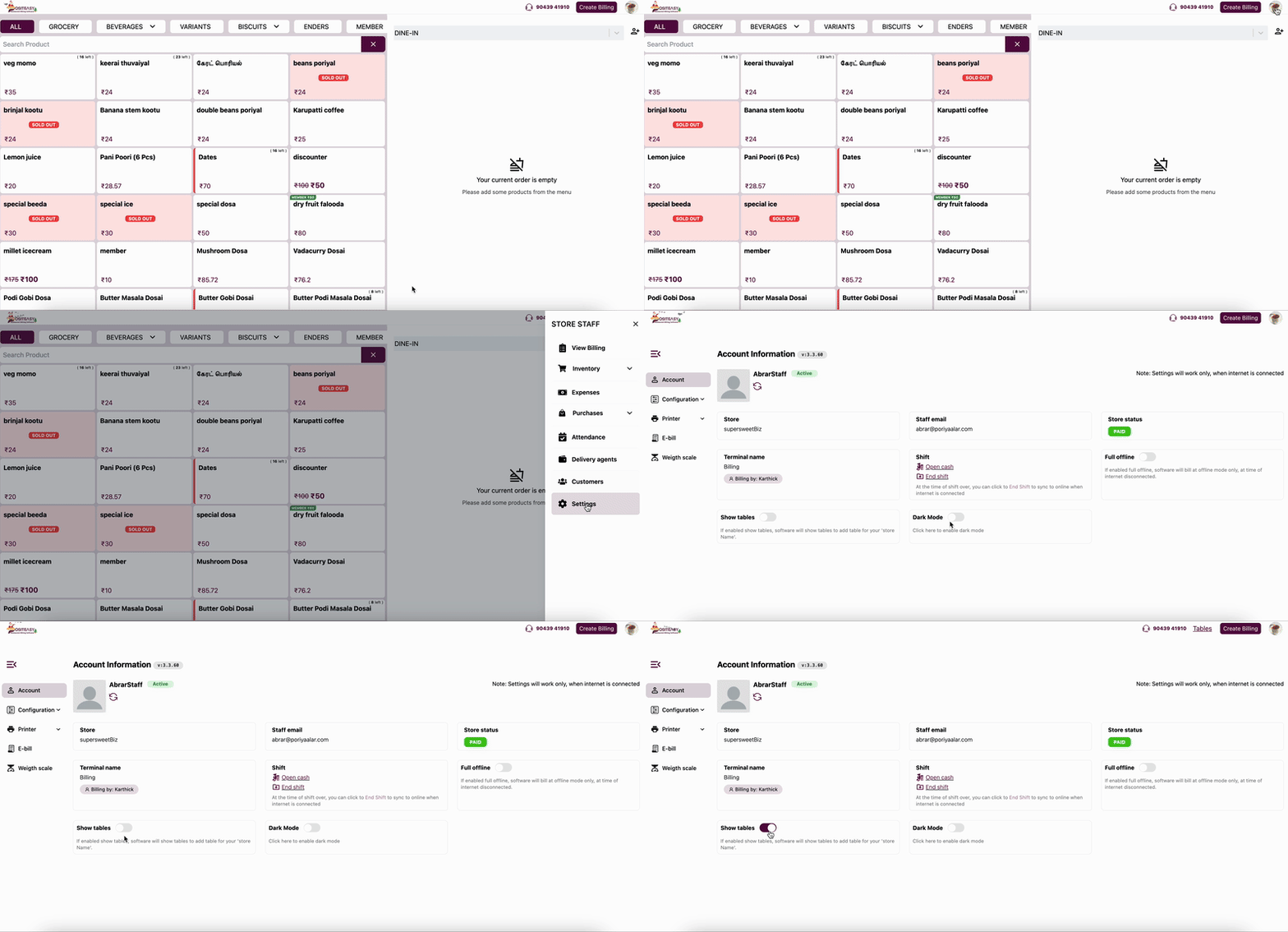
Step 1: Open Settings
-
In the Staff App, tap the profile icon and select Settings.
-
Enable the Show tables option.
Step 2: Verify Table Billing in Staff App
-
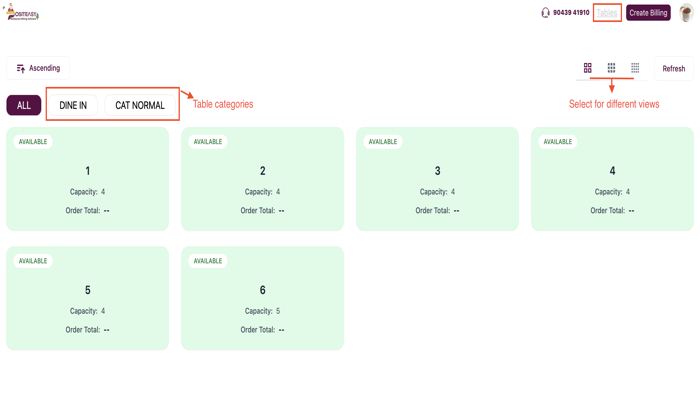
You should now see a Tables link at the top of the screen.
-
Tap on a table (for example, 1) to start a new order.
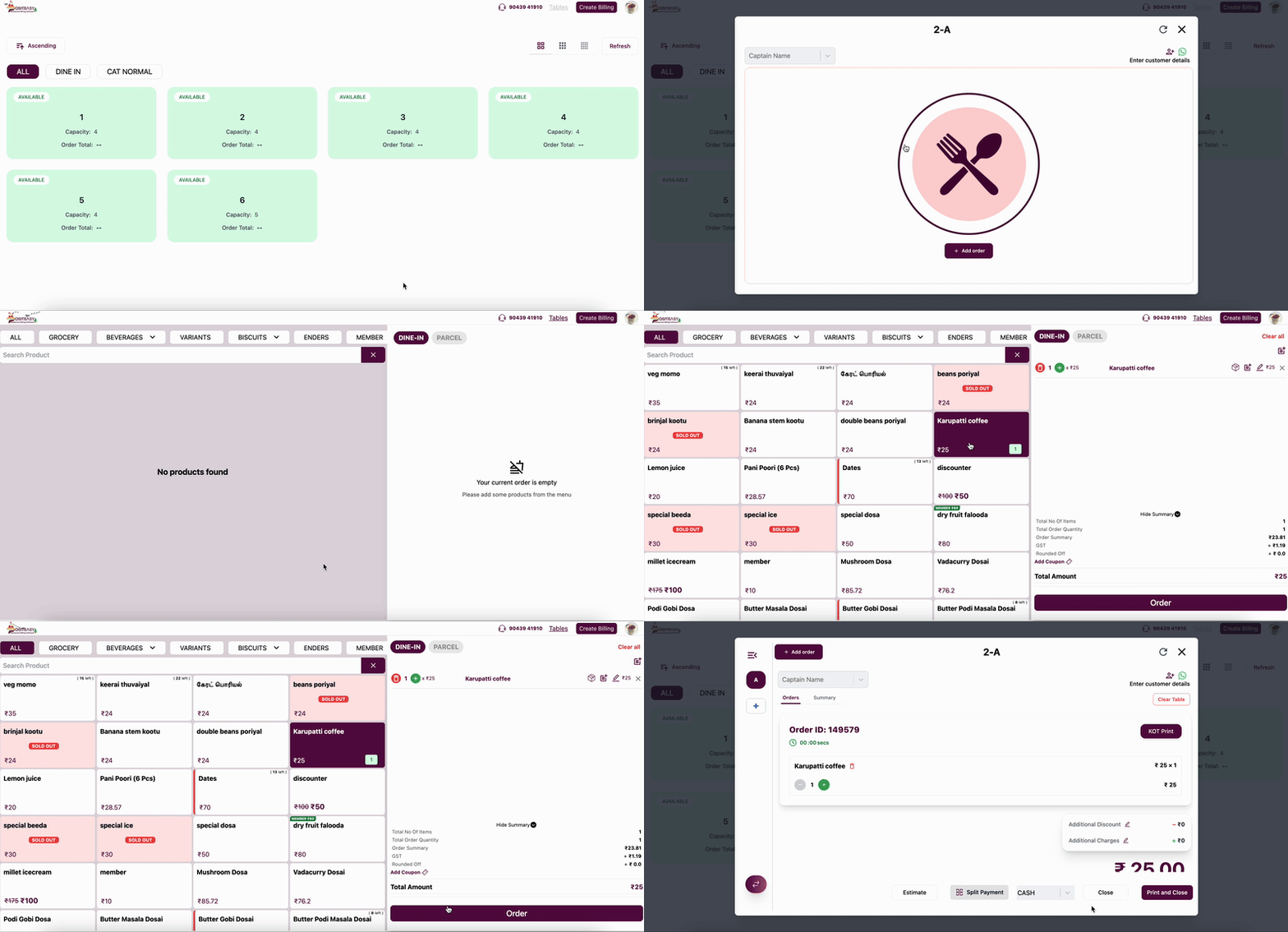
Step 3: Taking a Table Order (Workflow)
-
Select Table: Tap an available table (e.g., 2) to open it.
-
Add Items: Click the + Add order button and add items to the cart. Click Order to confirm and add the cart items to the table.
-
Edit Order: You can modify quantities or remove items from the table order, then save the changes.
-
KOT: If KOT print is enabled, a Print KOT button will be visible, which can be used to send the order to the kitchen.
-
Additional Order: To add more items to an ongoing order, open the table and click + Add order.
-
Estimate: Tap Estimate to print a provisional bill (check) for the customer without closing the table.
-
Close Order: Tap Close to settle the order without printing, or tap Print and Close to print the final bill receipt and close the order simultaneously.