How to Reprint Bills in Staff App
The Reprint Bills feature allows you to generate duplicate copies of customer bills or Kitchen Order Tickets (KOT) after they have been processed. This is useful for providing extra copies to customers or kitchens.
Step 1: Enable Reprint Permission (Merchant App)
Before reprinting in the Staff App, you must enable the permission for the specific terminal.
- Open the Merchant App.
- From the main navigation bar, Click on Settings.
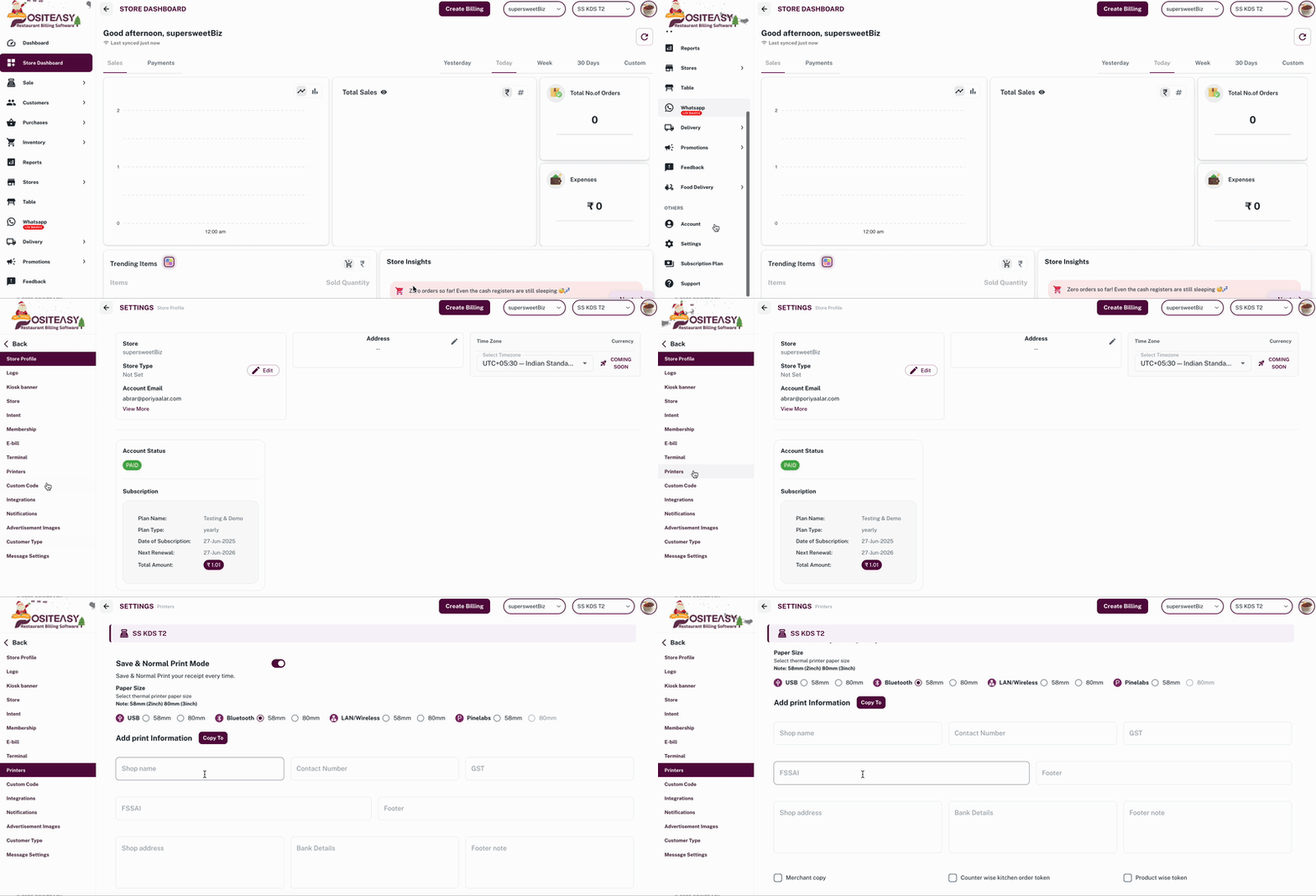
- Click on Printers.
- Make sure the desired terminal is selected.
important
While making changes to printer settings in the Merchant App, make sure you have selected the desired terminal.
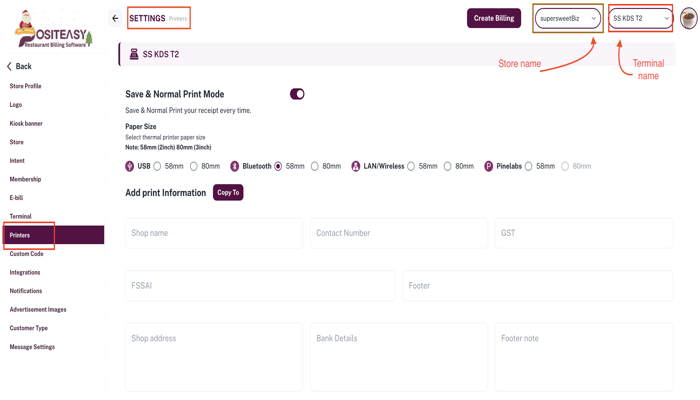
- Locate and Enable the option Allow reprint for staff.
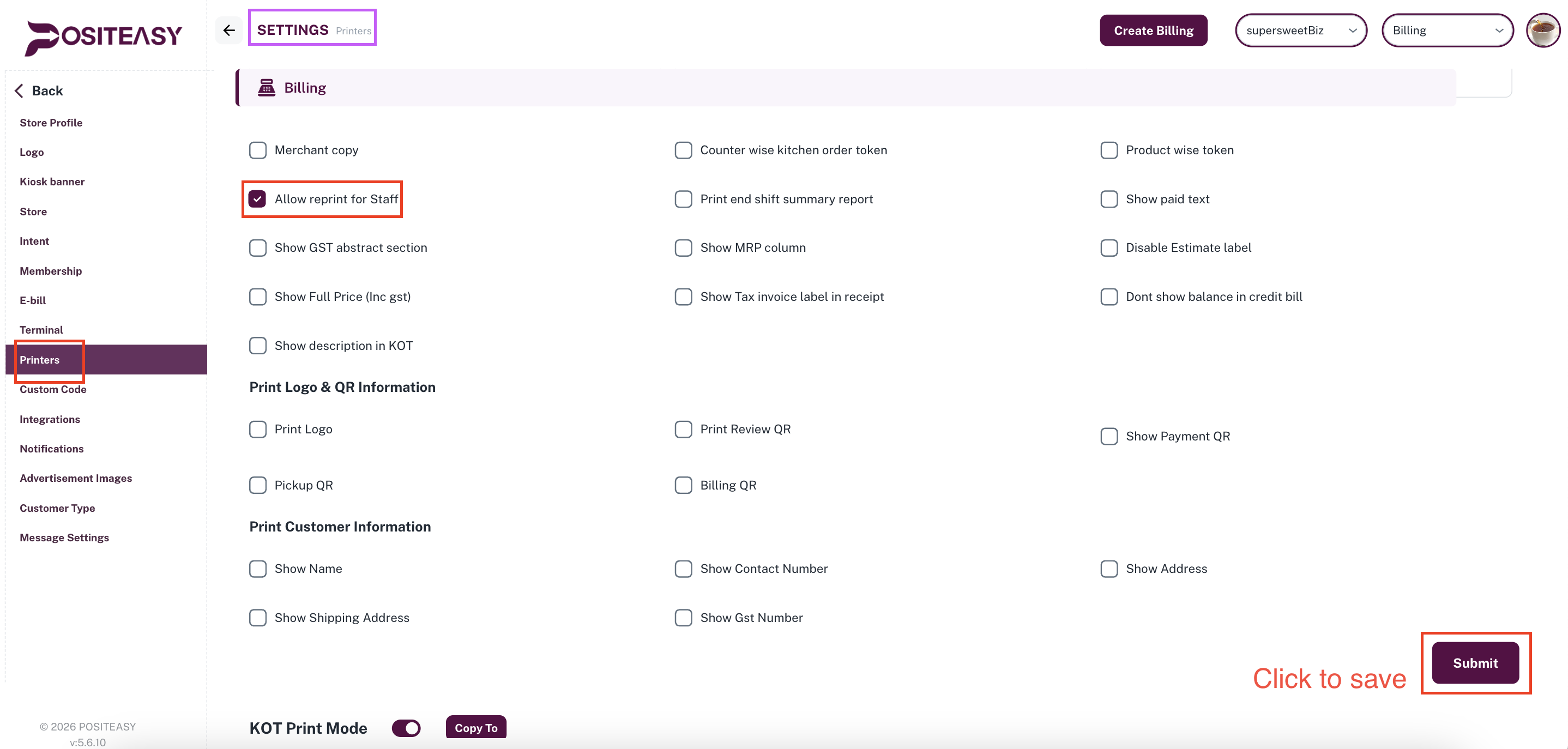
- Click the Submit button to save the settings.
Step 2: Sync Staff App
After updating the settings in the Merchant App, you must sync the Staff App to reflect the latest changes.
- Open the Staff App.
- Select the Profile Icon and go to Settings.
- Select Account.
- Click the Refresh icon to sync the latest settings.
(Refer to Sync Staff App for details).
Step 3: Reprint Bills in Staff App
Once permissions are enabled and synced, you can reprint bills from the billing section.
- 💻 Desktop View
- 📱 Mobile View
Desktop / Touch View
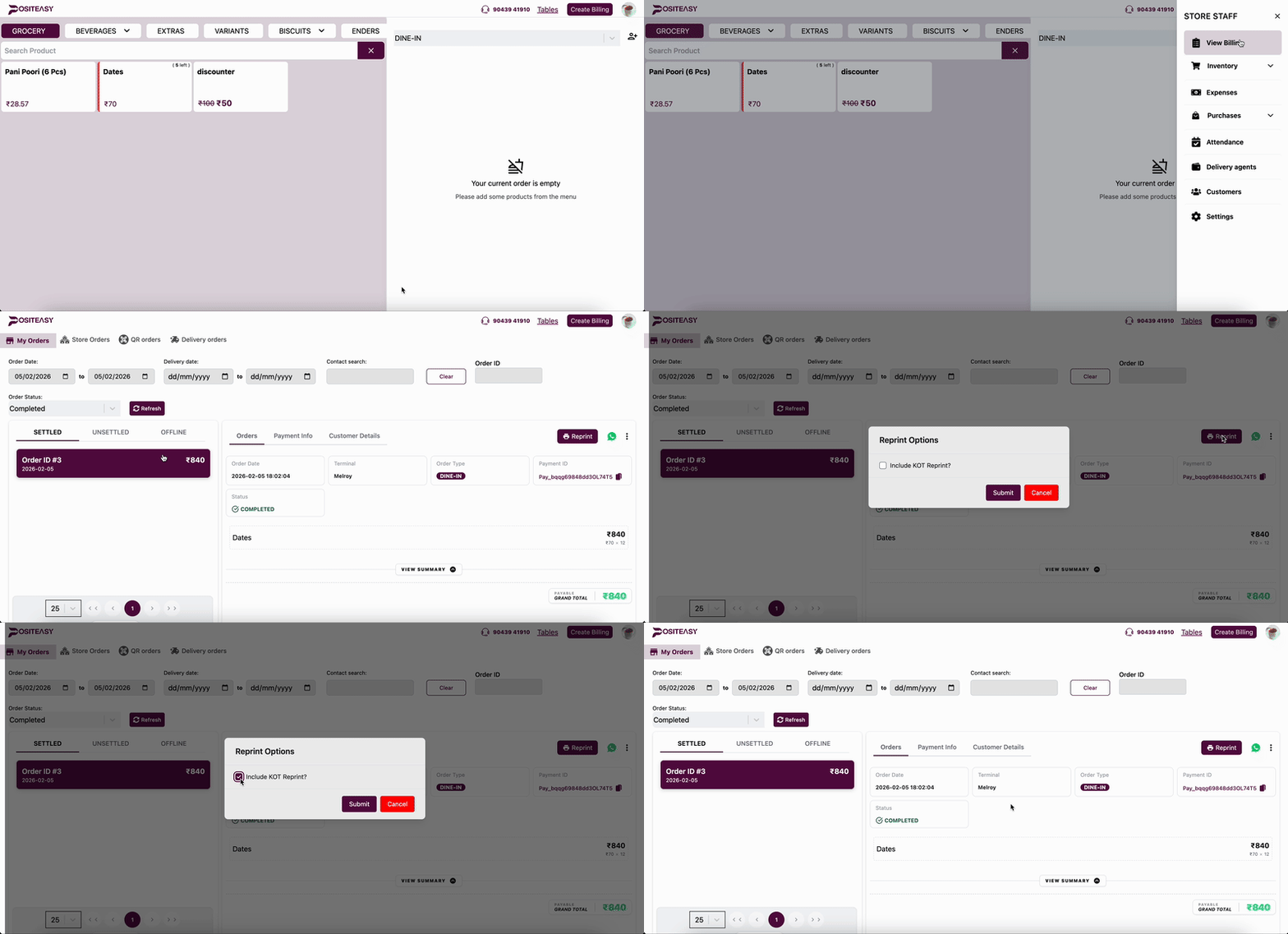
- Go to the View Billing page.
- Select the required order.
- In the order details section, click the Reprint button.
- Optional: To reprint the KOT, enable the Include KOT reprint checkbox and select Submit.
Mobile View
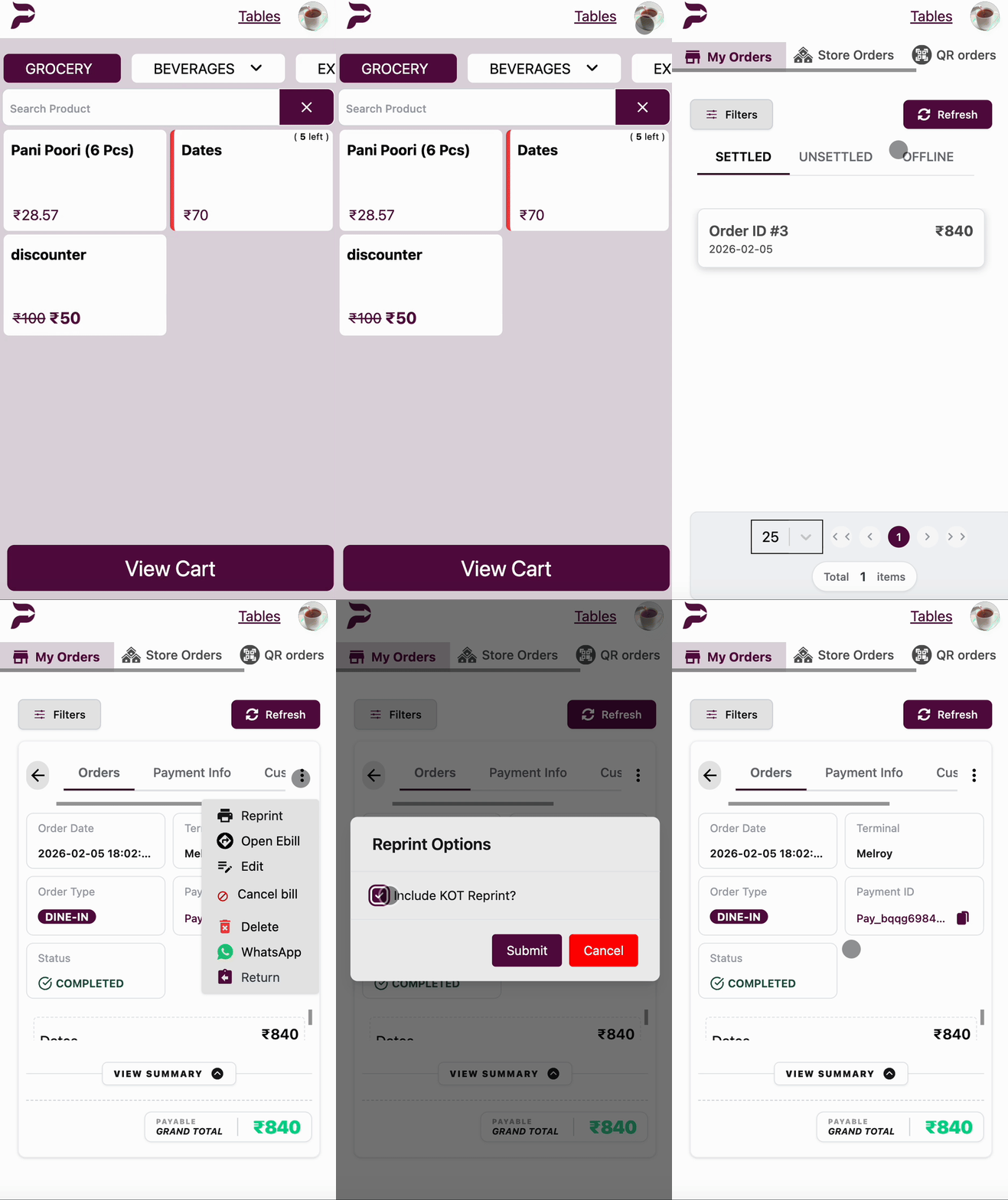
- Go to the View Billing page.
- Select the required order.
- Tap the three-dots menu in the order details section.
- Select Reprint.
- Optional: To reprint the KOT, enable the Include KOT reprint checkbox and select Submit.
note
Reprinted bills will have DUPLICATE printed as a header.