Adding customers and redeeming points
This guide explains how to add a customer to an order during table billing and how to redeem the loyalty points they have earned.
Step 1: Add customer to table order
To add customer information during billing:
-
Open the Billing screen at the table.
-
Click the Add Customer
 icon and search for the customer by entering their mobile number in the search field.
 -
If the customer already exists, select them. If they are a new customer, enter their details.
-
Once the customer is selected, their name and details will be linked to the current order.
Step 2: How to earn points
Points are added to the customer's account upon purchase as follows:
-
After adding the customer to the bill, place the order and complete the billing process as usual.
-
Based on the loyalty rules set in the Merchant App (e.g., 10 points for every ₹100), the system will automatically calculate the points earned on the total bill amount.
-
As soon as the bill payment is completed and the bill is closed, these new points are automatically added to the customer's account.
-
Customers can use these points on their next purchase.
-
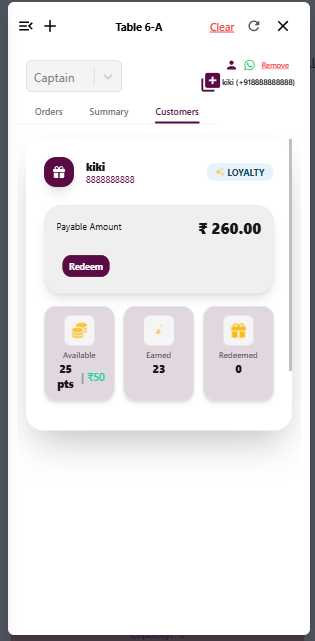
Go to the Customer tab and view Earned Points.
Step 3: Redeem points
To use the customer's points as a discount:
-
After adding the customer to the bill, look at the Customer section.
-
If the customer has sufficient points (based on loyalty rules), you will see a "Redeem Points" button.
-
Click the "Redeem Points" button.
-
An OTP Verification dialog box will open. Tap on "Send OTP through SMS".
-
Enter the OTP received on the customer's mobile and click Verify.
-
- If Partial & Full redemption is enabled in your Merchant App, a box will open where you can choose how many points to redeem.
- If only Fully Redeem is set in the Merchant App, all available points will be redeemed at once.
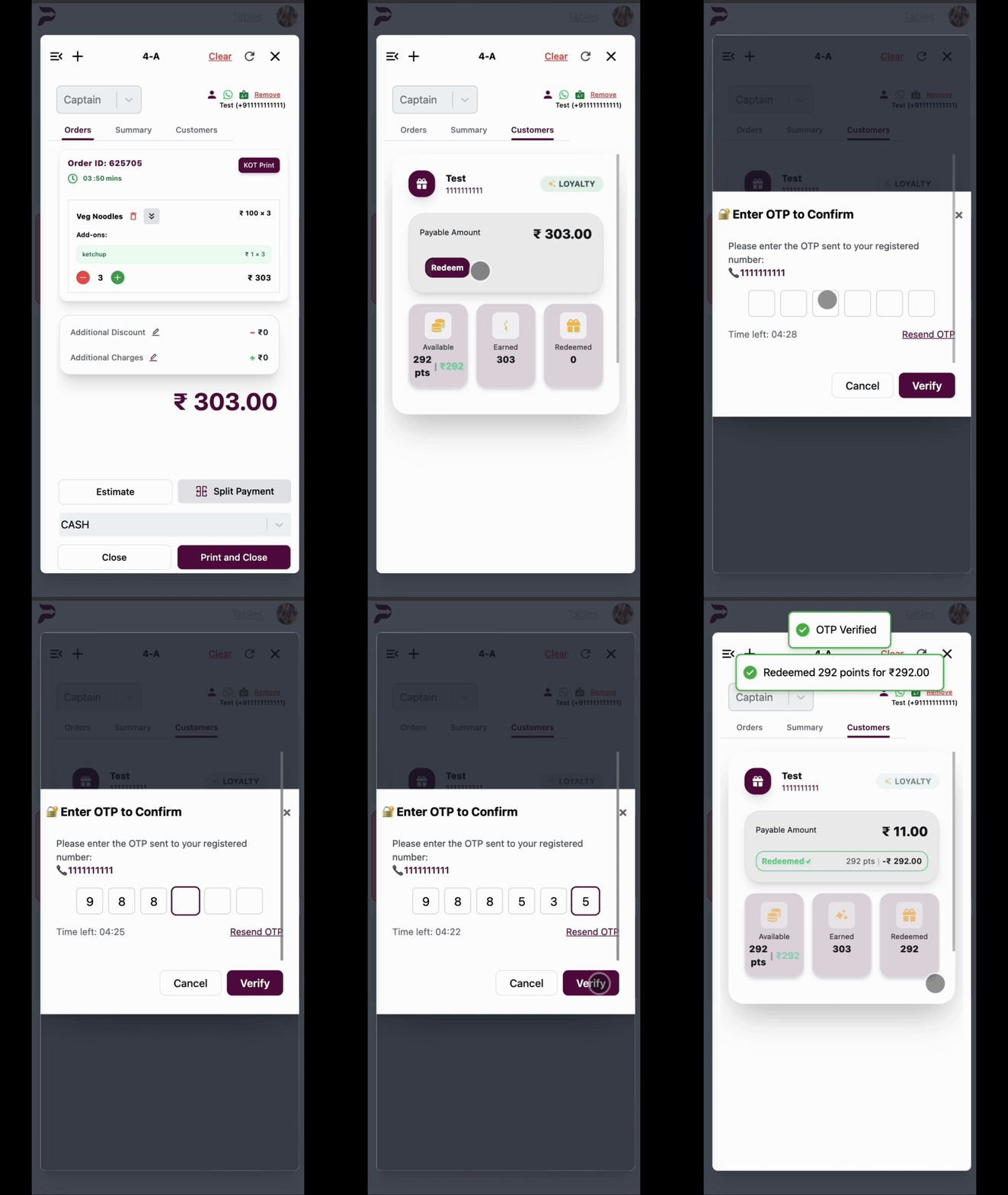
- After successful verification, the point value will be applied as a discount on the bill, and the total bill amount will be updated.
Step 4: View customer points and billing history
-
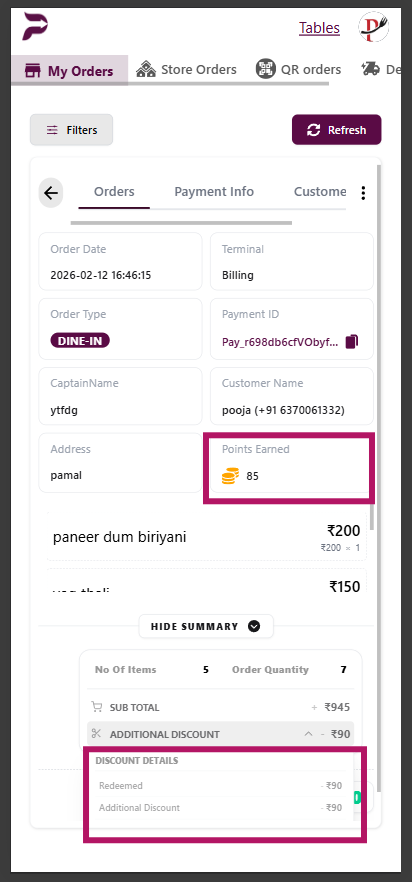
View Billing: After redeeming points, you can go to View Billing to see the updated points summary, such as how many points were earned and how many were redeemed.
-
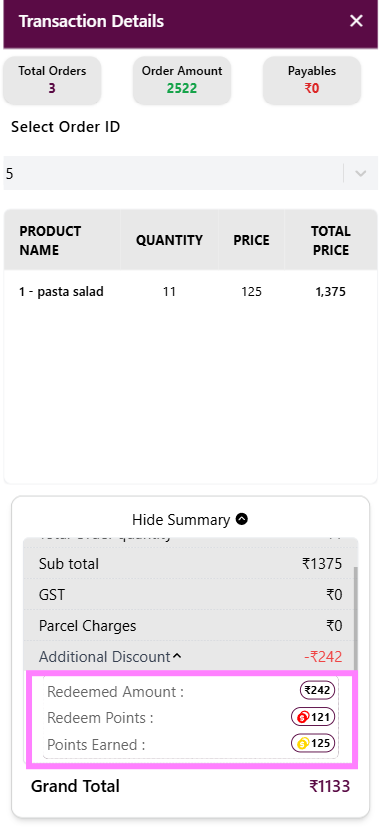
Customer Screen: After redeeming points, you can go to the customer profile to see updated points and transaction details:
- Go to the Customer Screen.
- Search for the customer and open their profile.
- Here you can see:
- Points Earned: 125
- Redeem Points: 121
 .
. -
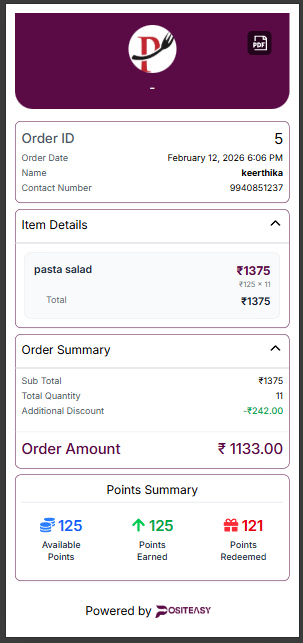
E-bill Screen: After the payment is complete, you can send an E-Bill to the customer and view the points summary:
- Available Points: Total points remaining in the account.
- Points Earned: Total new points earned from this specific order or transaction.
- Points Redeemed: Total points used to pay for this bill.
Step 5: Merchant Report
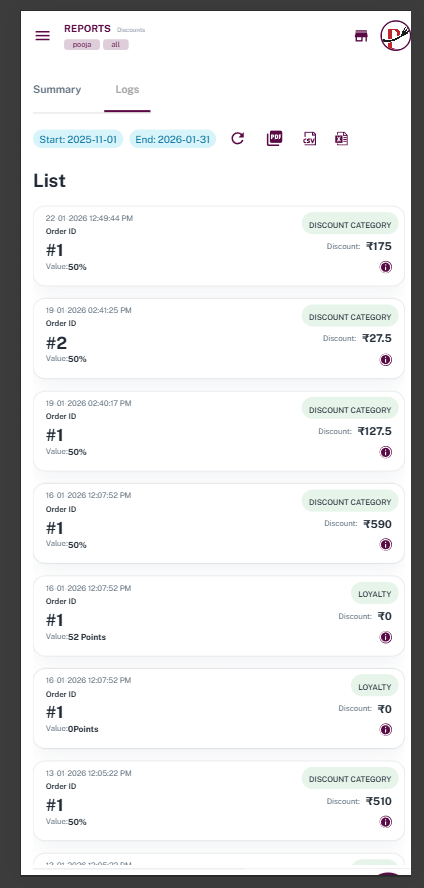
- Open the POSItEasy Merchant App.
- Go to the Reports section and select discount>>logs.
- Here you can track the following data:
The value of the points and redemption rules are based on the Loyalty Rule Management settings in the Merchant App.