How to Activate Plan from Merchant App
This guide explains how to view available subscription plans and activate a new plan or renew an existing one directly from the Merchant App.
Prerequisites
- You are logged into the Merchant App.
Step 1: Access Subscription Settings
- Open the Merchant App on your device.
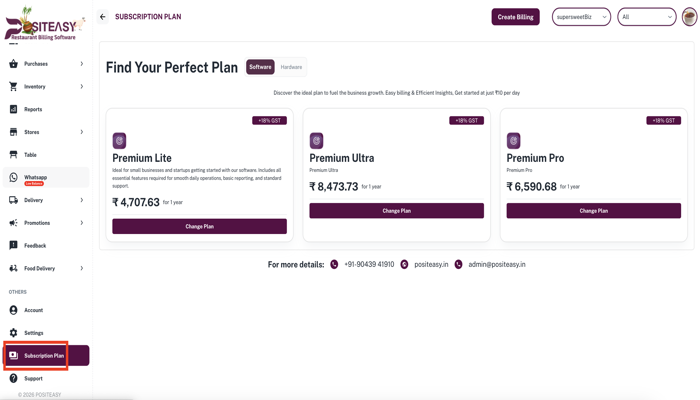
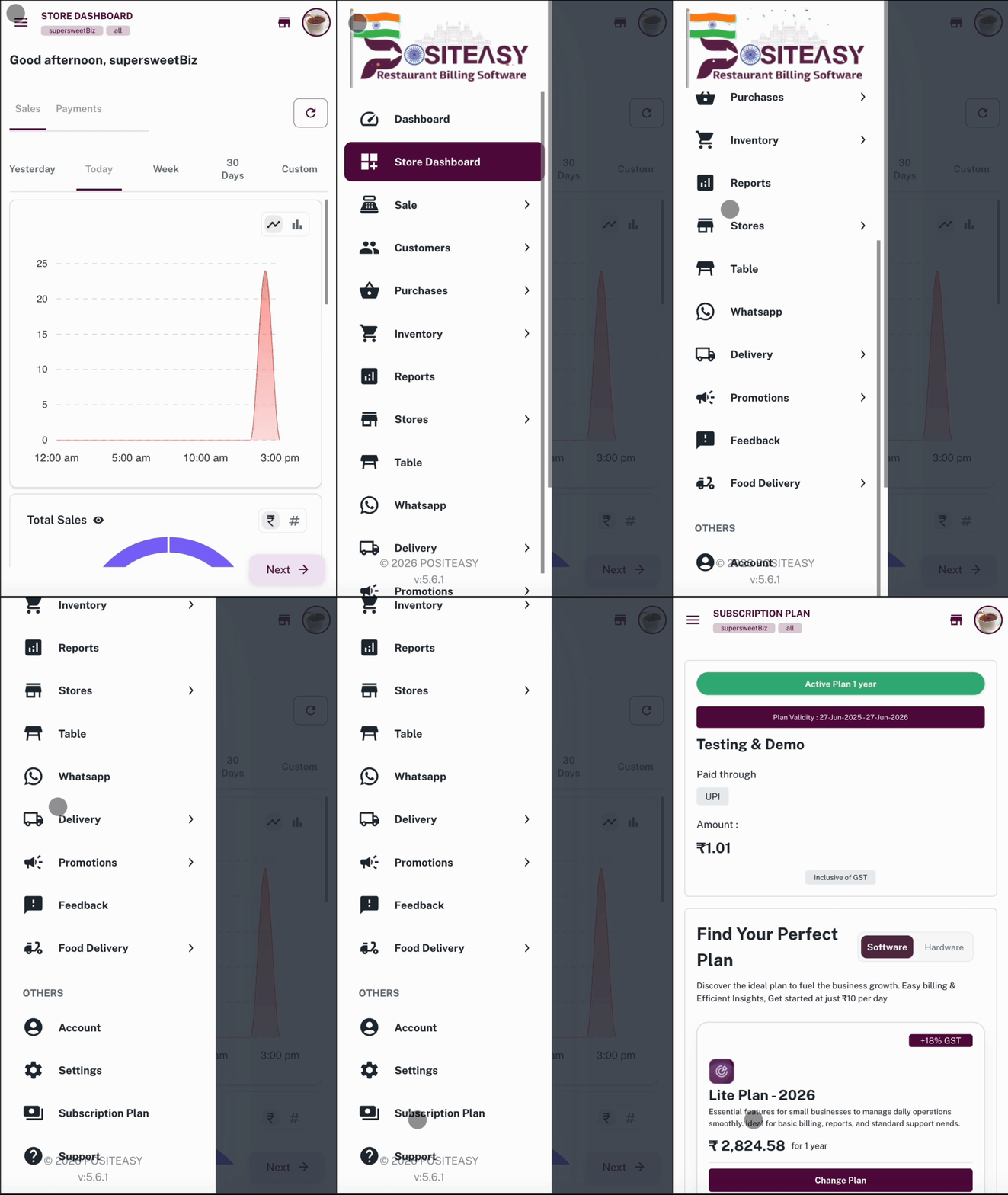
- From the main navigation bar, tap Subscription Plan.
- You will see a list of currently available plans (Lite, Pro, Ultra).
- 💻 Desktop View
- 📱 Mobile View
Step 2: Choose a Plan
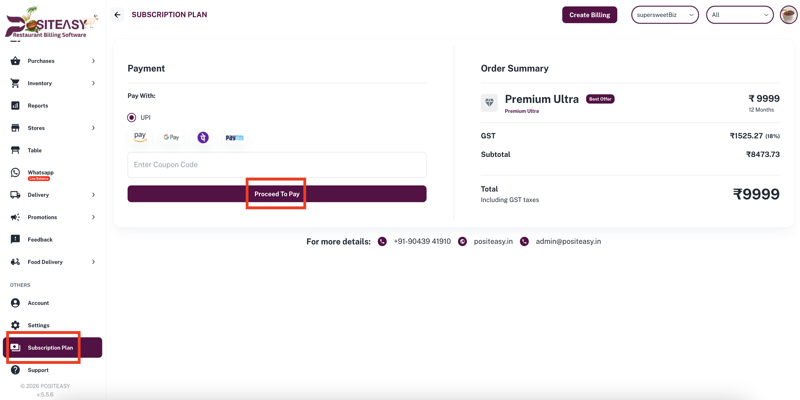
- Select the plan that best suits your business needs by tapping Change Plan.
- Enter coupon code (optional) if you have one.
- Tap Proceed to Pay to continue with payment.
Step 3: Confirm and Pay
- Scan the payment QR code to complete the payment using your preferred UPI method.
Step 4: Verify Activation
- After successful payment, go back to Subscription Plan to verify that your "Current Plan" status shows Active and the validity period is correct.
important
After activating a new plan, ensure you Sync your Staff Apps so that the new features are available on all terminals.
Troubleshooting
- Need Help? Contact support via the Support section in the app.