How to Renew Plan from Staff App
This guide explains how to renew an expired subscription from the Staff App.
Prerequisites
- You are already logged into the Staff App and the subscription has expired or is about to expire in 1-2 days.
Step 1: Access Subscription Payment Dialog
-
In the Staff App, locate the expiration tag in the top navigation bar (top-left, near the app icon):
- "Account expires in X days" (if plan is about to expire)
- "Expired" (if plan has expired)
-
Tap the expiration tag to open the payment dialog.
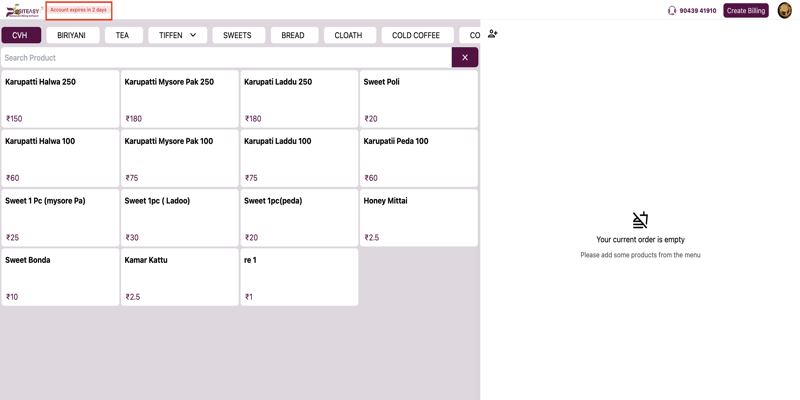
- 💻 Desktop View
- 📱 Mobile View
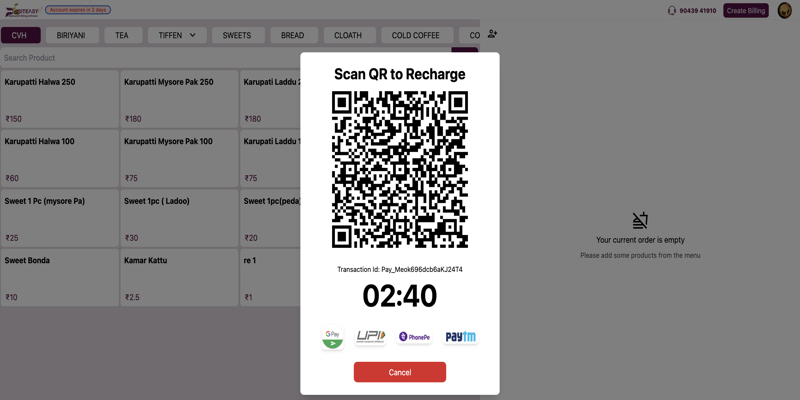
2.1) For Touch POS / Tablet Users:
- A UPI QR code dialog appears on the screen.
- Use your mobile UPI app to scan the QR code and complete the payment.
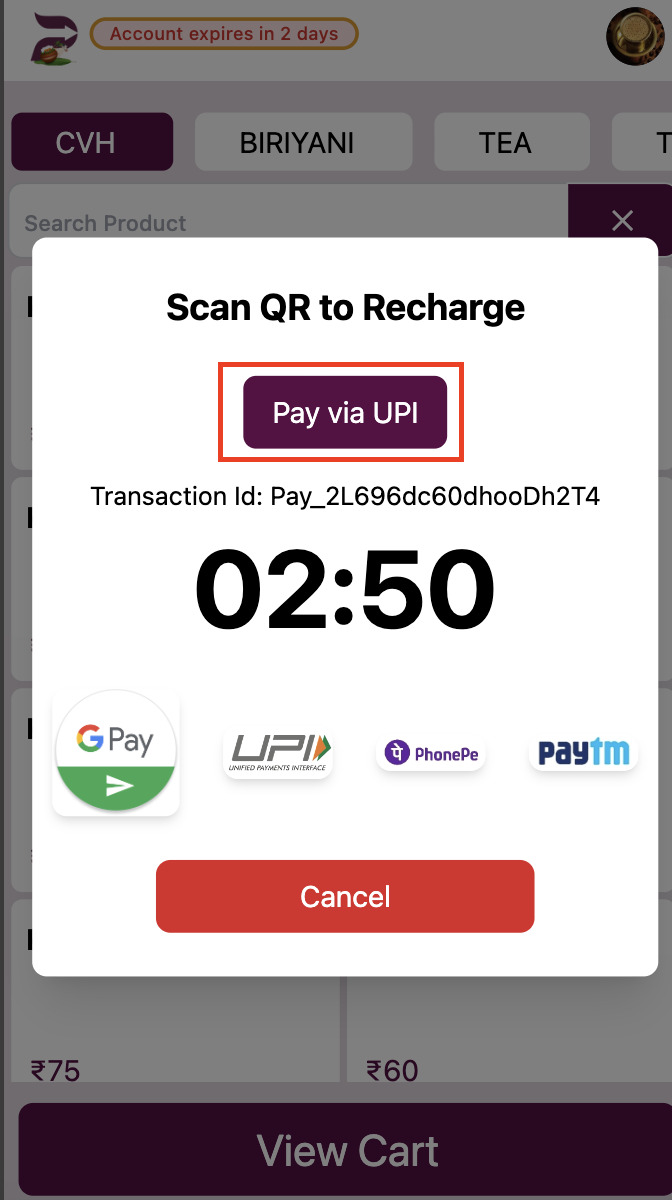
2.2) For Mobile Phone Users:
- A payment dialog opens.
- Tap Pay via UPI.
- Select your preferred UPI app and complete the payment.
important
- Staff App: Renews the currently active plan only (renews existing Lite/Pro/Ultra).
- To upgrade plans (Lite → Pro/Ultra), use the Merchant App.
Troubleshooting
- Need Help? Contact support via the Support section in the app.