How to Connect Bluetooth Printer
Follow these steps to connect your thermal printer via Bluetooth and configure it for use within the POSItEasy Staff App.
Step 1: Hardware Setup
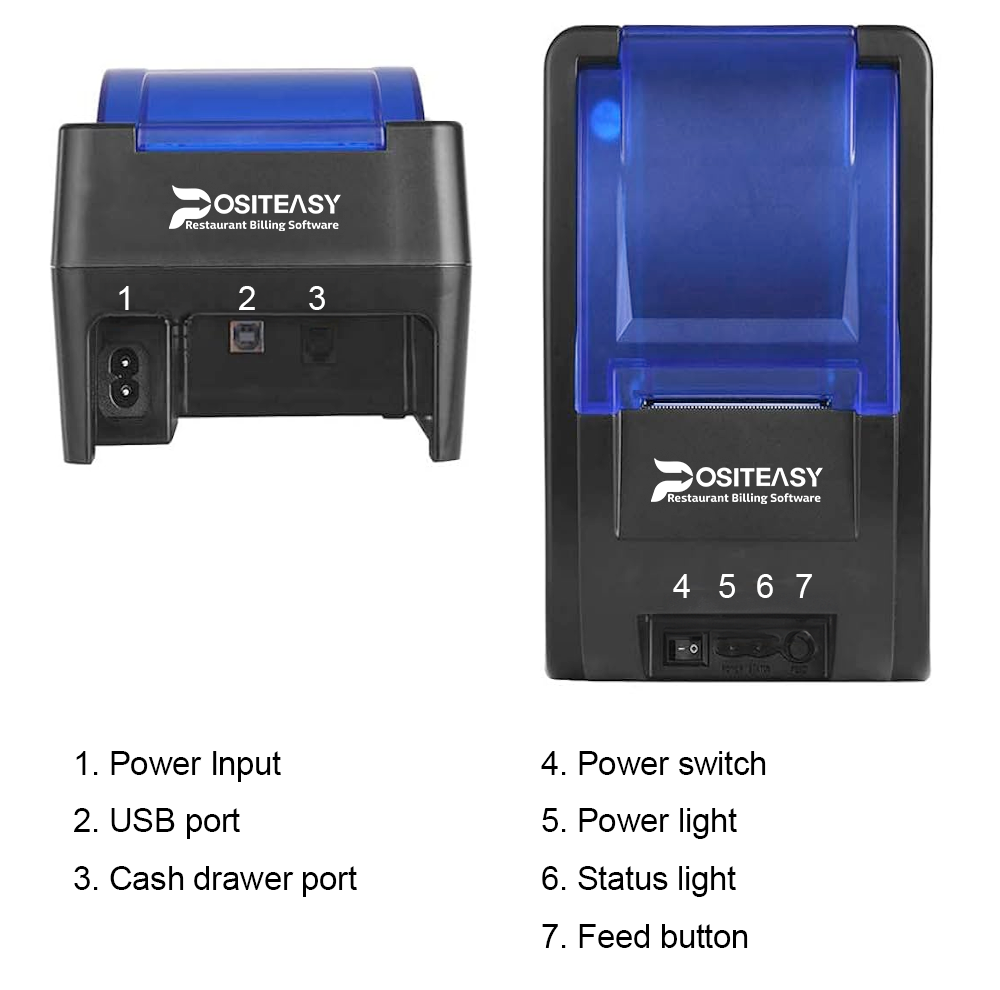
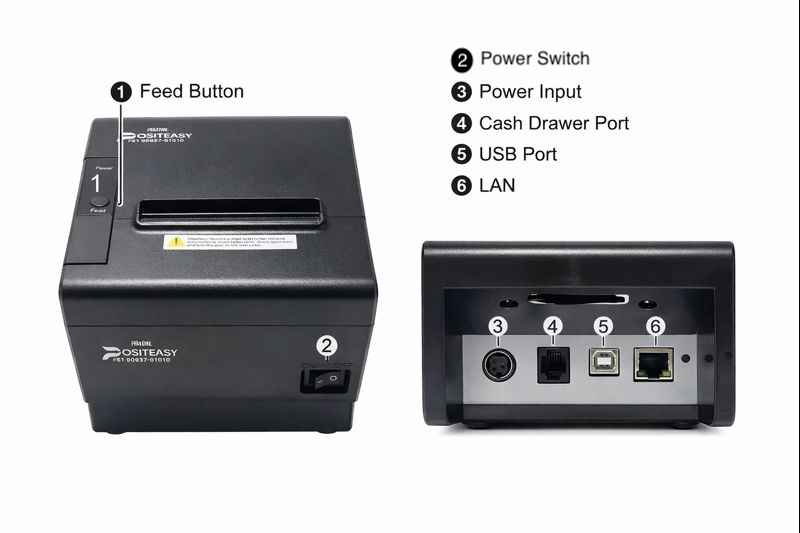
- Turn on your thermal printer.
- Make sure the paper roll is correctly loaded.
To take a test print, turn off the printer. Press and hold the Feed button, then turn the power back on. Release the Feed button once the power or status light starts blinking. The test page will start printing automatically.
For some 3-inch printers, you can also take a test print by double-pressing the Feed button.
Step 2: Pair Bluetooth on Android
-
Open Settings on your Android device and turn on Bluetooth.
-
Alternatively, Swipe down from the top of screen, find and turn on Bluetooth.Long press the Bluetooth icon to open Bluetooth settings.
-
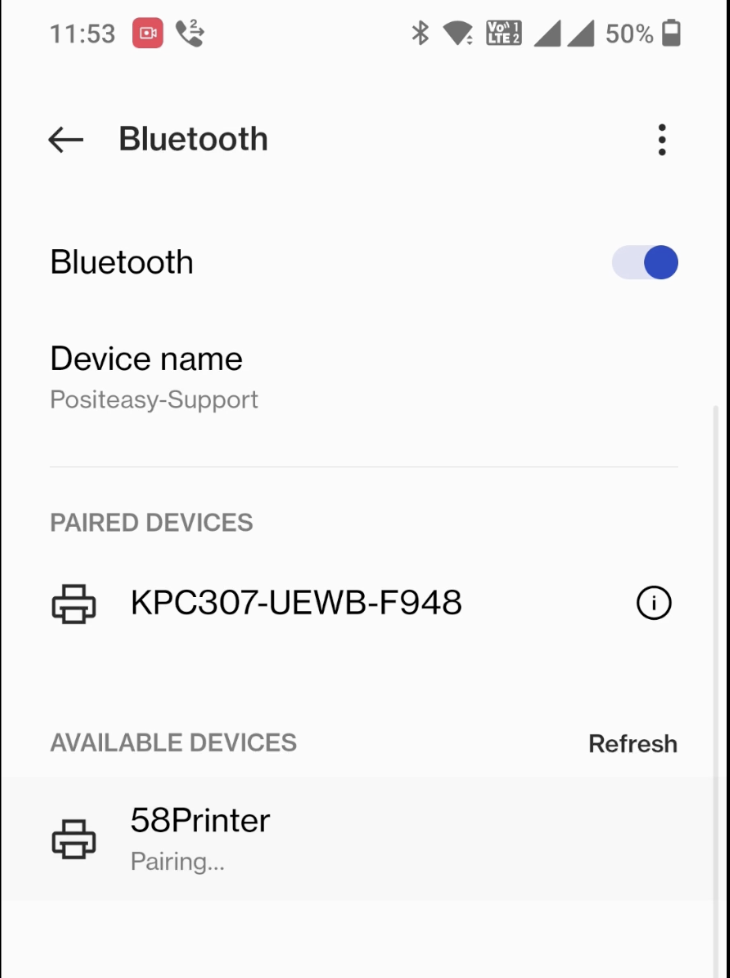
Find your printer name in the list of available devices and tap on it.
-
If prompted for a pairing code, try any one of the below:
00001234
-
Once it shows Connected or moves from available devices to paired devices, you are ready to configure the printer in Positeasy staff app.
Step 3: Configure printer in POSItEasy Staff App
Refer Setup Printer for staff app.