How to Install Positeasy Merchant App on Android
This guide explains how to install the Positeasy Merchant App on your Android tablet or smartphone.
Prerequisites
- An Android device (Tablet or Smartphone) with internet connectivity.
- A valid Google account logged in on the device.
- Sufficient storage space for the application.
- You have Positeasy Merchant App credentials (Registered Email Id and password)
Step 1: Open Google Play Store
- On your Android device, locate and tap the Google Play Store icon
 .
.
Step 2: Search for the App
-
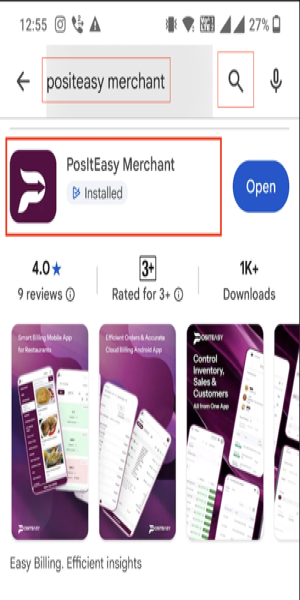
In the search bar at the top, type 'Positeasy Merchant'.
-
Tap the search icon.
-
Select and Install 'Positeasy Merchant' App.
Step 3: Open and Log In
-
Once installed, tap Open or alternatively click the launcher icon of Positeasy Merchant App icon

-
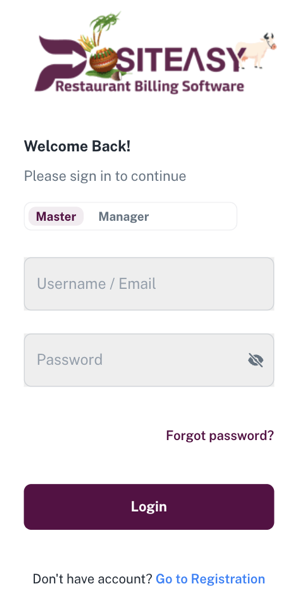
Enter the email address and password used during Merchant App registration.
-
Tap Login to access Merchant App.
Step 4: Grant Permissions
Upon first launch, the app may request permissions for:
- Location,Connect Nearby devices,Storage.
- Allow notifications.
Tap Allow or While using the app for all requested permissions to ensure the App functions correctly.